How to Change your Plesk Password?
Follow these steps to change your Plesk account password:
1. Log in to your Plesk account. (e.g., https://example.com:8443 )
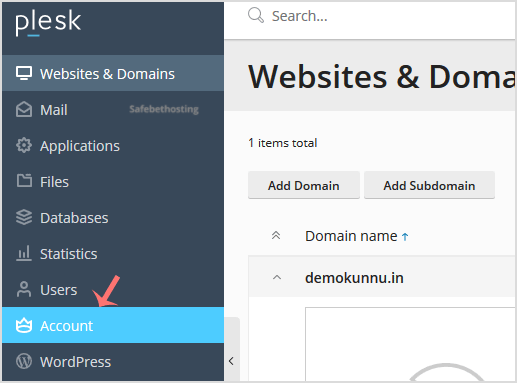
2. In the Sidebar Menu, click on Account.
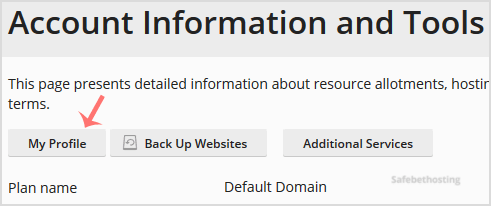
3. Under Account Information and Tools, click on My Profile.
4. In the password field, enter your password or click Generate.
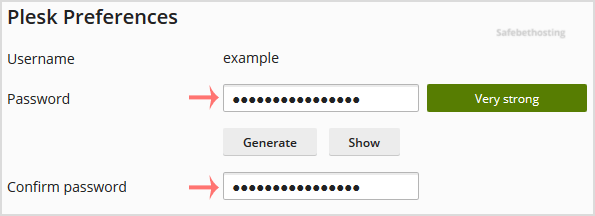
5. Then scroll down and click Apply.
Your password will be updated. You can then close the browser window.
Call now to get more detailed information about our products and services.
(214)-779-5144
 Copyright © 2025 All Rights Reserved
admin@safebethosting.com
Waxahachie, Texas 75165, USA