How to Remove a Backup File from Your DirectAdmin?
You can remove backup files from your DirectAdmin to reduce disk space usage. If you are getting an error while generating a backup, such as indicating that the Backup exceeds the storage limit, it will be useful for you to remove it.
1. Log-in to your DirectAdmin Account.
2. In the System Info & Files section, click on the File Manager Icon or type File Manager in the navigation filter box, and then the option will appear. Click on it.
3. Open the backups folder, hover your mouse over your newly generated backup file, and it will display a Context Menu.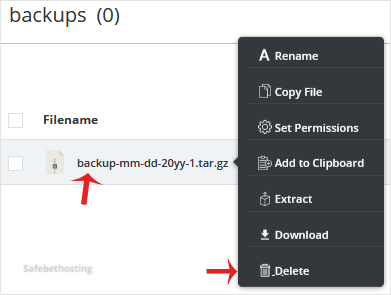
4. Click on Delete, and the file will be removed.
Congratulations. You successfully removed the backup file.
Call now to get more detailed information about our products and services.
(214)-779-5144
 Copyright © 2025 All Rights Reserved
admin@safebethosting.com
Waxahachie, Texas 75165, USA